Clean Install Windows 11 My Way
Clean Install Windows 11 My Way
This method lets you fresh-install Windows 11 directly from an internal drive. No Bloatware, No Microsoft Account. Just a Clean Windows 11.
Objectives
- No USB flash drive needed
- No bloatware
- No Microsoft account required
- No third-party software involved
Prepare Windows 11 Installer Partition
- Download Windows 11 ISO
- Mount the ISO and note the drive letter, e.g.,
F: - Press
Win + X, then open Disk Management - Right-click a volume → Shrink Volume… → Shrink → Note the drive letter of the new partition, e.g.,
G: Navigate to the ISO drive:
1
 cd F:\boot
Make the new partition bootable:
1
 bootsect /nt60 G:
Copy all files from the ISO to the new partition:
1
xcopy F:*.* G: /E /F /HF:= mounted ISO,G:= new partition
Install Windows 11 Without Bloat & Microsoft Account
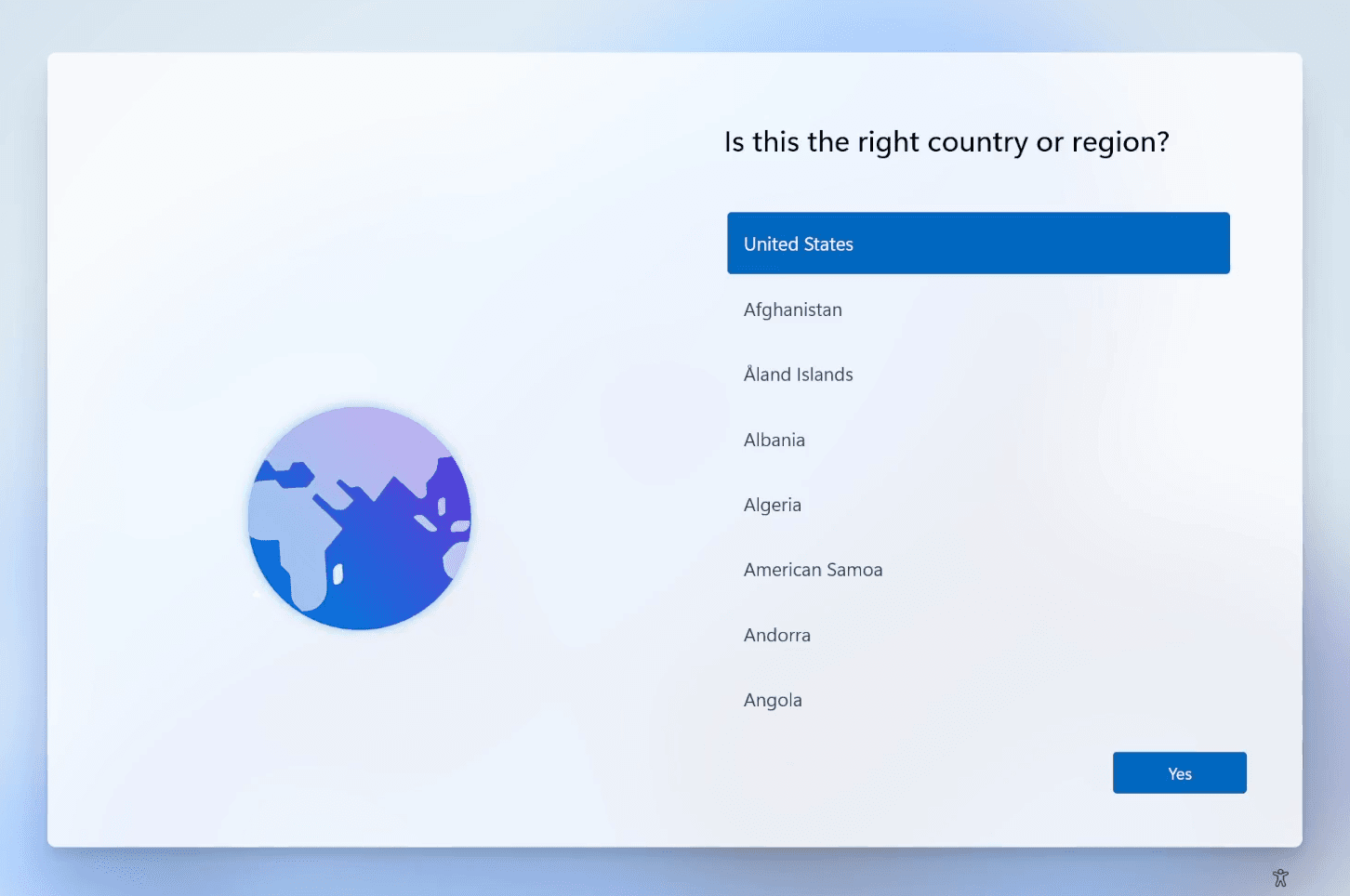
- On the “Is this the right country or region?” screen, press
Shift + F10to open Command Prompt
Type the following command and press
Enter. Your computer will reboot:1
OOBE\BYPASSNROTo make sure the computer is offline, press
Shift + F10and type:1
ipconfig /releaseYou can just unplug the Ethernet cable and skip this step.
- On the “Is this the right country or region?” screen, select German:
We choose German because it forces Windows to comply with EEA laws, which prevent Windows from installing bloatware and let you uninstall the Edge browser. Don’t worry, you can change this later in Settings.
- Follow the setup prompts and be sure to click “I don’t have internet” and “Continue with limited setup”.
This post is licensed under CC BY 4.0 by the author.